Alerts
Turn any DataMaxi+ signal into a push, email, or Telegram message. Alerts run server-side at the cadence you pick — no need to keep a tab open.
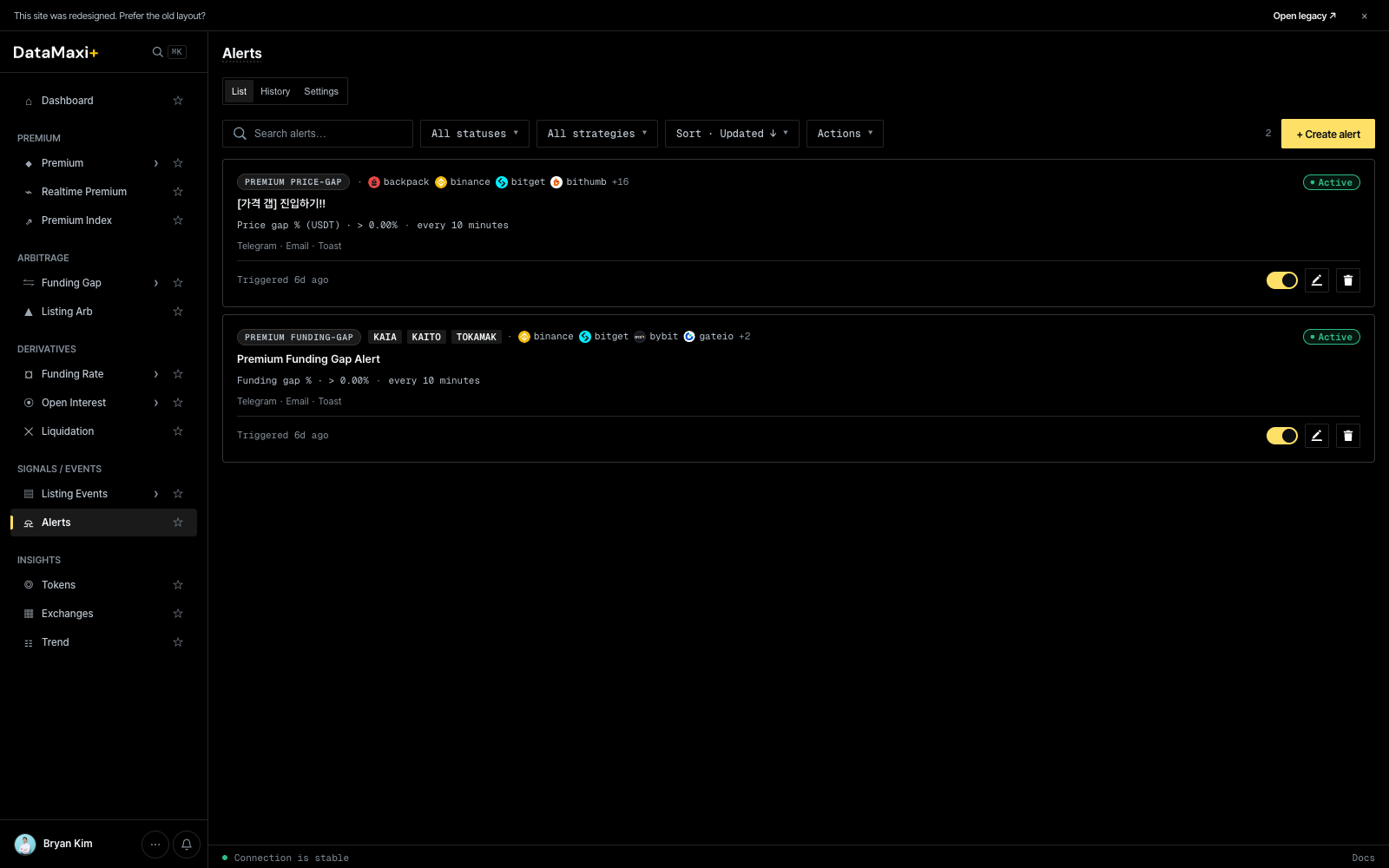
Three tabs
- List — your active and paused alerts.
- History — every time an alert has triggered. Useful for tuning thresholds.
- Settings — global delivery preferences (Telegram chat, email address, default channels).
List view
Top toolbar:
- Search alerts…
- All statuses ▼ —
Active / Paused / Triggered / All. - All strategies ▼ — narrow to a specific strategy family (Premium price-gap, Premium funding-gap, Listing event, etc.).
- Sort · Updated ↓ ▼ — sort order.
- Actions ▼ — bulk actions on selected alerts.
- + Create alert (top-right) — opens the alert-creation modal.
Each alert card shows:
- Strategy chip — e.g.
PREMIUM PRICE-GAP,PREMIUM FUNDING-GAP,LISTING EVENT. - Venue chips — exchanges in scope (
backpack,binance,bitget,bithumb,+16…). - Title — your label (e.g.
[가격 갭] 진입하기!!,Premium Funding Gap Alert). - Rule — the trigger expression in plain language (e.g.
Price gap % (USDT) · > 0.00% · every 10 minutes). - Delivery channels —
Telegram · Email · Toast. - Last triggered timestamp.
- Right-side: Active toggle, Edit (pencil), Delete (trash).
Creating an alert
+ Create alert opens a 5-step wizard: Identity → Targets → Trigger → Delivery → Review. The step indicator at the top reads 1 Identity · 2 · 3 · 4 · 5 — each step unlocks the next once it's filled in.
Step 0 — Quick presets (optional)
Six built-in templates sit at the top of the modal. Selecting one auto-fills Identity + Targets so you only have to tune Trigger and Delivery.
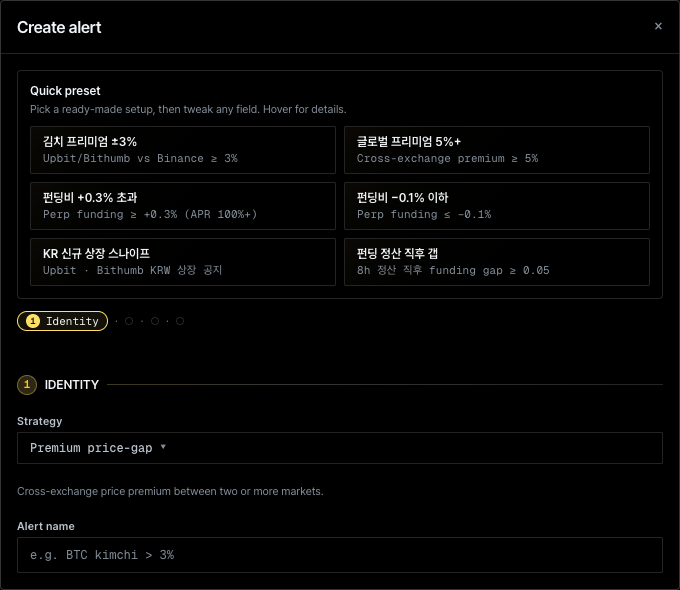
| Preset | Pre-fill |
|---|---|
| 김치 프리미엄 ±3% | Strategy = Premium price-gap, Markets = Upbit/Bithumb vs Binance, threshold ≥ 3% |
| 글로벌 프리미엄 5%+ | Strategy = Premium price-gap, all markets, threshold ≥ 5% |
| 펀딩비 +0.3% 초과 | Strategy = Funding rate, threshold ≥ +0.3% (APR ≈ 100%+) |
| 펀딩비 −0.1% 이하 | Strategy = Funding rate, threshold ≤ −0.1% |
| KR 신규 상장 스나이프 | Strategy = Listing arbitrage, scope = Upbit + Bithumb KRW |
| 펀딩 정산 직후 갭 | Strategy = Premium funding-gap, 8h settlement, gap ≥ 0.05 |
Every preset is editable — change any field and the alert is yours.
Step 1 — Identity
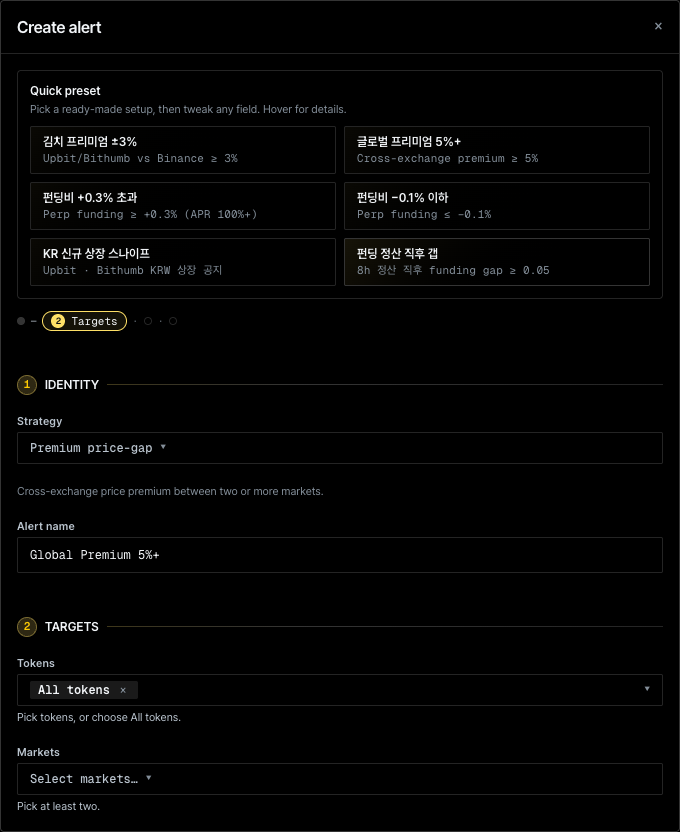
| Field | Description |
|---|---|
| Strategy ▼ | Picks the rule engine. Options: Premium price-gap, Premium funding-gap, Funding rate, Favorite portfolio, Top funding rate, Listing arbitrage. The hint line below the dropdown describes the strategy. |
| Alert name | Free-text label. Used in the list, in delivery messages, and in History. |
Step 2 — Targets
| Field | Description |
|---|---|
| Tokens ▼ | Multi-select with chips. Default is All tokens — type to narrow, or pick explicit symbols. |
| Markets ▼ | Multi-select of venues / symbol legs. At least two markets are required — the strategy needs both sides of the comparison. |
Step 3 unlocks once at least two markets are selected.
Step 3 — Trigger
The Trigger step encodes the rule expression. The exact controls depend on the chosen Strategy, but they always resolve to a sentence in the form:
<metric> · <comparator> · <threshold> · evaluated every <interval>
For example, Price gap % (USDT) · > 0.00% · every 10 minutes — the format you see on every active alert card in the list.
Typical controls:
- Metric (auto-set by Strategy):
Price gap %,Funding rate,APR edge,Premium index, … - Comparator:
>,≥,<,≤,=,between(with a min/max pair). - Threshold: numeric input. Units depend on the metric (% for price/funding, bp if the basis-points toggle is set, USD for size).
- Evaluation interval: how often the rule is re-checked. Common values:
1 / 5 / 10 / 15 / 30 / 60 minutes. Tighter intervals catch fast moves; looser intervals reduce noise. - Cooldown (optional): minimum time between consecutive triggers for the same alert.
Step 4 — Delivery
Pick where the alert goes. Each active card shows its enabled channels as a chip strip (Telegram · Email · Toast).
| Channel | Setup |
|---|---|
| Telegram | Connect the DataMaxi+ Telegram bot once (Settings tab). Each alert pushes a message to your chat. |
| Sent to the account email on file. | |
| Toast | Renders in the app's in-page notification stream — useful when you have DataMaxi+ open in a tab. |
Multiple channels can be enabled per alert; deliveries fan out in parallel.
Step 5 — Review & Create
The final step shows a read-only summary of everything above so you can sanity-check before saving. Submit creates the alert and returns you to the list with it set to Active by default. Toggle, edit, or delete from the list at any time.
Steps 3–5 screenshots are not included — they only render once Targets passes validation with two valid markets, which automated capture couldn't reliably do. The field descriptions above are derived from the rule format visible on the active alert cards plus the platform's standard delivery channels.
Alerts evaluate server-side; you don't need DataMaxi+ open in a browser.
When to use this page
- Set "tell me when X premium goes above N%" and walk away.
- Get a Telegram ping the moment a KRW-market listing announcement matches your filter.
- Tune thresholds by reading History — which alerts fire usefully vs. spam.